Image Enlarger

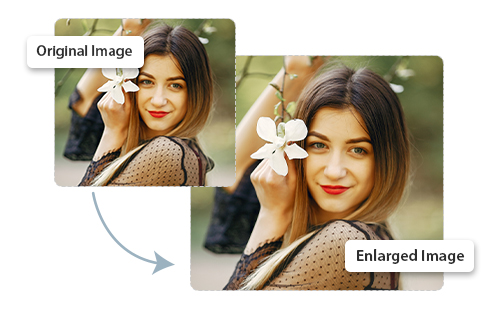
Easily enlarge a picture online in high-quality format. It is free and no sign-up is needed!

Upload Icon
Upload Image

or, drag and drop image here
Upload & Resize Image
Download
Upload Image

How to Enlarge Image Online?

1. Upload Your Image: Click on “CHOOSE IMAGE” and select an image.

2. Choose Image Enlargement Ratio: Enter the ratio of width and height and click on “ENLARGE”.

3. AI-Powered Upscaling – Enhance image resolution without losing clarity.

4. Maintain Aspect Ratio – Automatically preserve proportions for natural results.

5. Supports All Formats – Enlarge JPG, PNG, WEBP, and more with ease.

6. Download: Save your enlarged image in high quality to your device.


Upload Image

Image Enlarger Tool

An image enlarger tool helps users to enlarge a picture quickly and easily without pixelation or blur issues. Whether you're working on digital platforms, printing ID photos, or scaling up small logos, our tool ensures crisp and professional-looking results with just a few clicks. Powered by smart upscaling algorithms, it preserves details and sharpness even when increasing image dimensions significantly. The tool supports all common image formats and allows you to choose custom sizes or preset dimensions. No design skills or software installations are needed—everything works directly in your browser. Perfect for marketers, designers, students, and anyone who needs high-quality images for print or digital use. Preview your enlarged image before downloading to ensure it meets your expectations. Save time and get sharp, clear results every time you upscale with our image enlarger.

Features

Free & Easy to Use

Completely free with a simple, user-friendly interface.

No Watermarks

Download clean images without any branding or pop-ups.

Original Quality

Ensures your image stays sharp, clear, and uncompressed.

Safe & Secure

Your files aren’t stored, shared, tracked, or monitored.

Resized Image
Image Resizing, Optimize, Adjust, And Perfect in Seconds!

FAQs

Use an image upscaling tool that is designed to preserve visual details when increasing dimensions, and start with the best-quality source image available. ResizeTheImage.com uses smart upscaling techniques and describes its tool as preserving detail and sharpness when images are enlarged significantly.

Use an image enlarger that provides a preview after processing. ResizeTheImage.com includes a preview step so you can inspect the enlarged image before downloading it and determine whether the result meets your requirements.

Both operations change an image's dimensions, but image enlargement specifically increases the pixel dimensions of a smaller image, usually with techniques intended to preserve visual quality. A standard image resizer can also change dimensions, while an image enlarger focuses on increasing image size and maintaining useful detail during the process. ResizeTheImage.com provides a dedicated Image Enlarger for this purpose.

First determine the size at which the image will appear in the presentation or marketing material, then enlarge it to provide sufficient pixel dimensions for that display size. ResizeTheImage.com allows users to enter custom dimensions and preview the enlarged image before downloading it, which can help prepare small images for digital designs.

Upload the scanned document or printed image to an image enlarger and increase its dimensions to the size required for viewing, printing, or digital use. ResizeTheImage.com specifically states that its Image Enlarger can be used for scanned documents and printed material, with custom dimensions and smart upscaling available.

Yes. A browser-based image enlarger can increase image dimensions without requiring desktop editing software. ResizeTheImage.com works directly in the browser, allowing you to upload an image, enter the desired dimensions, enlarge it, preview the result, and download the finished image.

Upload the image and enter the required width and height in pixels. ResizeTheImage.com's Image Enlarger provides custom width and height controls, allowing you to specify the target dimensions before enlarging and downloading the image.

Use an image enlarger that increases the pixel dimensions without cropping or changing the image's framing. ResizeTheImage.com allows you to enter larger width and height values and uses aspect-ratio preservation to maintain the original proportions while enlarging the image.

Maintain the original aspect ratio when increasing an image's width and height. ResizeTheImage.com's enlargement workflow automatically preserves image proportions, helping prevent the stretched or compressed appearance that can occur when width and height are changed independently.

Upload the original logo to an image enlarger and increase its dimensions while preserving its aspect ratio. ResizeTheImage.com uses smart upscaling techniques intended to preserve sharpness when increasing image dimensions, making it suitable for scaling small logos for digital or print use.

To prepare a low-resolution image for printing, increase its pixel dimensions before sending it to print. ResizeTheImage.com lets you enter custom dimensions and enlarge an image while using smart upscaling to maintain visual clarity. For the best printing result, start with the highest-resolution original image available because enlarging cannot recreate detail that was never captured.

You can increase the resolution of a small image by enlarging its width and height with an image upscaling tool. ResizeTheImage.com allows you to upload an image, enter custom width and height values, and enlarge the image using smart upscaling techniques designed to preserve detail and sharpness.

Yes, our tool uses smart resizing techniques to maintain clarity.

Absolutely. It's completely free and has no hidden charges.

JPG, PNG, and WebP are fully supported.

Yes, it’s responsive and works smoothly on mobile browsers.

Yes, it works great for documents and printed material